


Command-line mail on OS X: re-alpine and Geektool
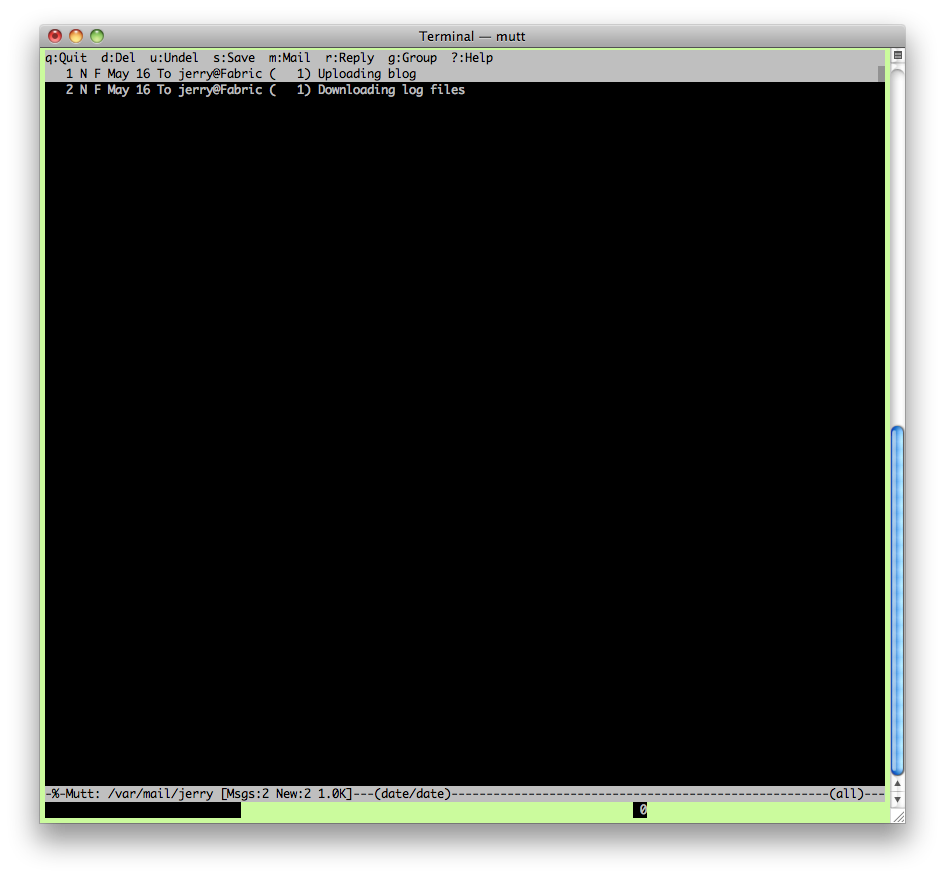
I manage my remote web site through command-line tools that transfer logs, run log analyses, and upload from the Django CMS. These automated processes generate a lot of mail to the mail file in /var/mail.
I don’t want to set up a forward file, because that sets up a dependency that might mean I don’t receive messages telling me that something’s wrong, because something’s wrong! Mac OS X Mail used to be able to set up a /var/mail account, but it can’t do that any more. And because OS X has such great GUI tools, I sometimes find that I don’t enter Terminal for days at a time.
A better mail client
The built-in Unix “mail” command is about as basic as you can get and still be able to actually read your mail. Over time, I’ve found it necessary to come up with tricks to make it easier to navigate, such as reading all of my mail in reverse order, counting down. Today, I decided it was time to install something else.
In “the old days”, the two mail clients most commonly used from the command line were elm and pine. The equivalents today are mutt and re-alpine. Both appear to work with Mac OS X Snow Leopard.
I was a big fan of elm over pine back in the day, so the first one I tried was mutt. I was able to ./configure and make the mutt 1.5.20 source code and then open ./mutt to view my /var/mail messages. It wasn’t immediately obvious what to do next, however. It didn’t support the up and down arrows on my keyboard out-of-the-box and the choice of colors was hideous. So before mucking around with the configuration files, I thought I’d find out how Pine was doing.
Pine’s gone through a few incarnations, from pine to alpine and now to re-alpine. Getting re-alpine working on OS X is even easier than mutt. It comes as a .dmg file, and all you have to do is drop color-coded files into one of two directories. That’s it: it is then installed and ready to use from the command-line. The command is still “alpine”, as is all of the branding inside.
The re-alpine interface is nearly the same as the old pine interface, and is very easy to use for a command-line app. Type “alpine” and it will bring up the opening screen; from there, type the ‘I’ key to go to the message index; the default “folder” is your /var/mail inbox.
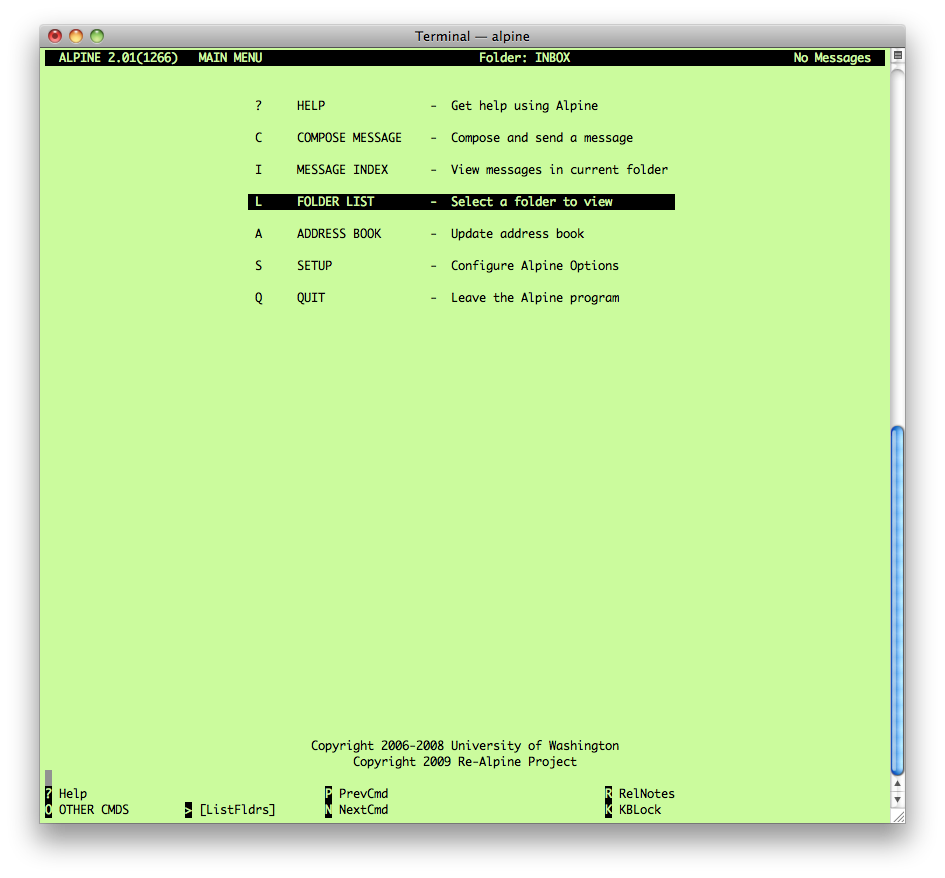
The available commands are listed on the bottom of the screen.
Simple notification
When you have mail waiting in your /var/mail inbox on Mac OS X, opening up a terminal will tell you that you have mail, and whenever any command completes, it will tell you that you have mail.1
But with better and better GUI tools, it’s become less and less necessary to go to the terminal. So some form of notification becomes useful. I suppose, someday, I’ll have to install Growl. Growl looks great, but it requires writing scripts to take advantage of it. I prefer things (like SilverService) that let me just use existing scripts.
While looking for remote monitoring tools at the office this week, I ran across GeekTool. GeekTool is like SilverService for notifications. All it does is display something on the desktop. At the office I’ve quickly started using it to monitor log files and remote graphs. But the shell output option is perfect for displaying incoming mails.
- /usr/bin/mail -H
This is just the command-line mail program with the option to display the index of waiting mails and immediately quit. If there are messages waiting, it will display the message date and subject, and if not it will display nothing.2
So this will leave the desktop alone, unless there is mail waiting to be read from one of my cron jobs.
GeekTool is pretty cool, and you can download a bunch of pre-made “geeklets” for it (I haven’t used any of them). You can place them on the desktop and arrange them as you see fit.
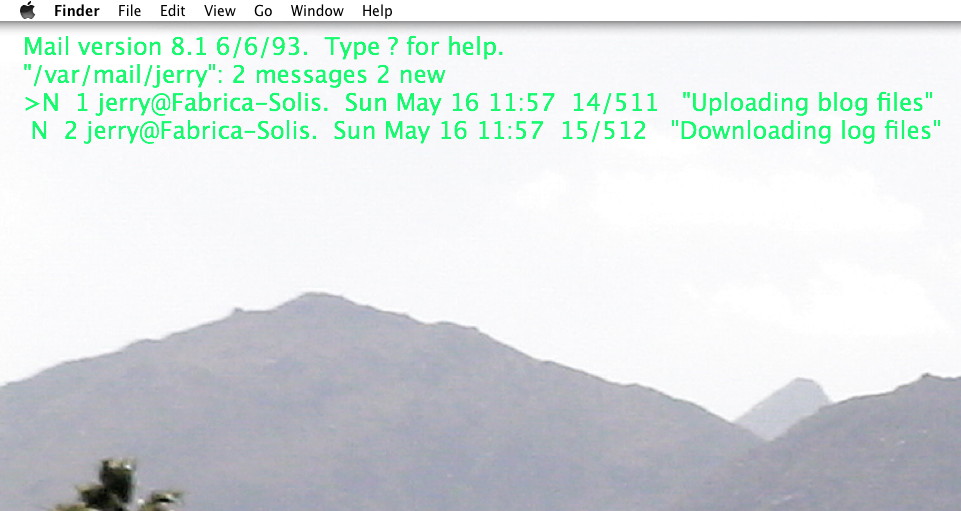
I believe that this is actually the “bash” shell that is checking the inbox to see if it needs to warn you that you’ve got mail.
↑Mail actually sends a notice to stderr, but Geektool takes its input from stdin so it doesn’t see that.
↑
- GeekTool
- “GeekTool is a System Preferences module for Mac OS 10.5. It lets you display on your desktop different kind of informations, provided by 3 default plugins.” The plugins let you monitor files (such as error logs), view images (such as live graphs), and display the results of command-line scripts.
- Growl
- “Growl lets Mac OS X applications unintrusively tell you when things happen.”
- In the end, alpine was just easier: K. Mandla at Motho ke motho ka botho
- “But for as much time as it took me to almost get my four-plus e-mail accounts working with mutt, it took me all of 30 seconds with alpine. Now I can peacefully graze away on the Elysian fields of console-based e-mail clients, without pulling out my hair over the quadruple threat of muttrc-fetchmailrc-procmailrc-msmtprc.”
- The Mutt E-Mail Client
- “Mutt is a small but very powerful text-based mail client for Unix operating systems.”
- re-alpine
- “The continuation of the Alpine email client from University of Washington.”
- SilverService
- “SilverService is a Mac OS X application that allows you to use familiar unix shell commands from within any Services-aware application (i.e., almost any Cocoa application).” This is a very useful application if you do command-line scripting but also work in the GUI.
More GeekTool
- Bluetooth battery early warning system
- Use GeekTool, or crontab or launchd and notifications, to know when your bluetooth batteries need recharging.
- icalBuddy and eventsFrom/to
- Ali Rantakari’s icalBuddy has an error in the documentation for the “eventsFrom/to” command-line option. Rather than “tomorrow at time” use “time tomorrow”.
- Put a relative clock on your Desktop with GeekTool
- There are a lot of desktop clocks that show the absolute time. But sometimes you just want to know if the time is today, or yesterday, or two days ago. Here’s how to do it with Python and GeekTool.
- Apple Mail on the Desktop with GeekTool
- Here’s a simple AppleScript to use with GeekTool to put your inbox on the Desktop.
- GeekTool, TaskPaper, and XML
- A script to convert a TaskPaper file to XML so as to filter it for specific tags and display the results on the Desktop.
- One more page with the topic GeekTool, and other related pages
More macOS tricks
- 42 Astoundingly Useful Scripts and Automations for the Macintosh
- MacOS uses Perl, Python, AppleScript, and Automator and you can write scripts in all of these. Build a talking alarm. Roll dice. Preflight your social media comments. Play music and create ASCII art. Get your retro on and bring your Macintosh into the world of tomorrow with 42 Astoundingly Useful Scripts and Automations for the Macintosh!
- Save clipboard text to the current folder
- Use the Finder toolbar to save text on the current clipboard directly to a file in the folder that Finder window is displaying.
- Avoiding lockFocus when drawing images in Swift on macOS
- Apple’s recommendation is to avoid lockFocus if you’re not creating images directly for the screen. Here are some examples from my own Swift scripts. You can use this to draw text into an image, and to resize images.
- What app keeps stealing focus?
- I’ve been having a problem on Mac OS X with something stealing focus. Here’s how to at least find out what that something is.
- Enable AirPrint for all connected Mac printers
- I have an iPad and an old workhorse of a printer, an HP 1012 LaserJet, connected to my iMac. I almost never need to print from the iPad, but when I do, handyPrint works.
- 14 more pages with the topic macOS tricks, and other related pages