


Quality reduced file size in Mac OS X Preview
ColorSync makes Quartz filters.
If you use the print to PDF feature in Mac OS X, you have probably noticed that it can create some really large PDF files. This is fine as long as you are copying them to CD or DVD, but if you’re putting them on the web or sending them through e-mail, they can really cause havoc on both ends.
If you open the PDF in Preview, you can reduce the file size by doing a “Save As...” and choosing, appropriately, Reduce File Size from the Quartz Filter menu. Often, that will be fine. But the way that it reduces the file size is by saving all images as JPEGs of middle quality. Sometimes that quality will not be enough.
I just finished a Persistence of Vision tutorial, and because it’s a tutorial on using a 3-D raytracer it was full of images. The PDF file was nearly 20 megabytes. After saving it with Reduce File Size, it was down to under one megabyte... but the quality of the images was so bad that they didn’t serve to illustrate the concepts in the text.
It was obvious what was happening, and I knew that when saving JPEG files you are allowed to trade off low file size with increased quality. But there was no slider available in the Quartz Filter menu to increase the quality of the image.
The answer, it turns out, is in ColorSync Utility in the Utilities folder off of the Applications folder. ColorSync Utility can create new Quartz filters. Open up ColorSync Utility and switch to the “Filters” pane. This will list all of the filters that you currently have available.
- In the lower left, click on the “+” button. This creates a new filter.
- Give the filter a name, and press return.
- To the right of the filter’s name, choose the down arrow. A menu will pop up.
- From the pop-up menu, choose “Add Image Effects Component”, and from that menu choose “Image Compression”.
- Adjust the image compression Mode to JPEG.
- Adjust the image compression quality however you prefer.
- The next time you use Preview to “Save As...”, you'll have a new option under Quartz filters.
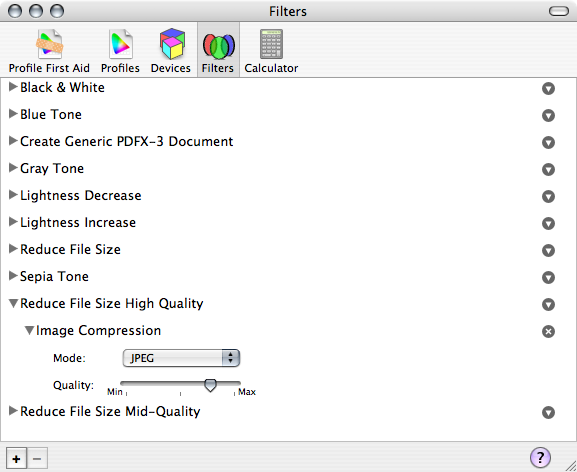
I’ve created a Reduced File Size High Quality and Mid-Quality as custom Quartz filters.
With the quality slider three quarters over, the file size dropped to 7.7 megabytes. This is quite a bit larger than with the slider half-way over, but not nearly the 20 megabytes of the original. And quality became a lot higher.
Filter while printing
You can also filter while printing, avoiding the need to re-open the PDF in Preview. When you go to print, pull down the menu just below “Presets” that usually says “Copies & Pages”. Choose “ColorSync”. Then choose the Quartz filter that you want. Once you’ve chosen it, you can also pull down the Presets menu and do a “Save As...” to remember these settings.
- May 21, 2025: Reduce File Size Update for Sequoia
-
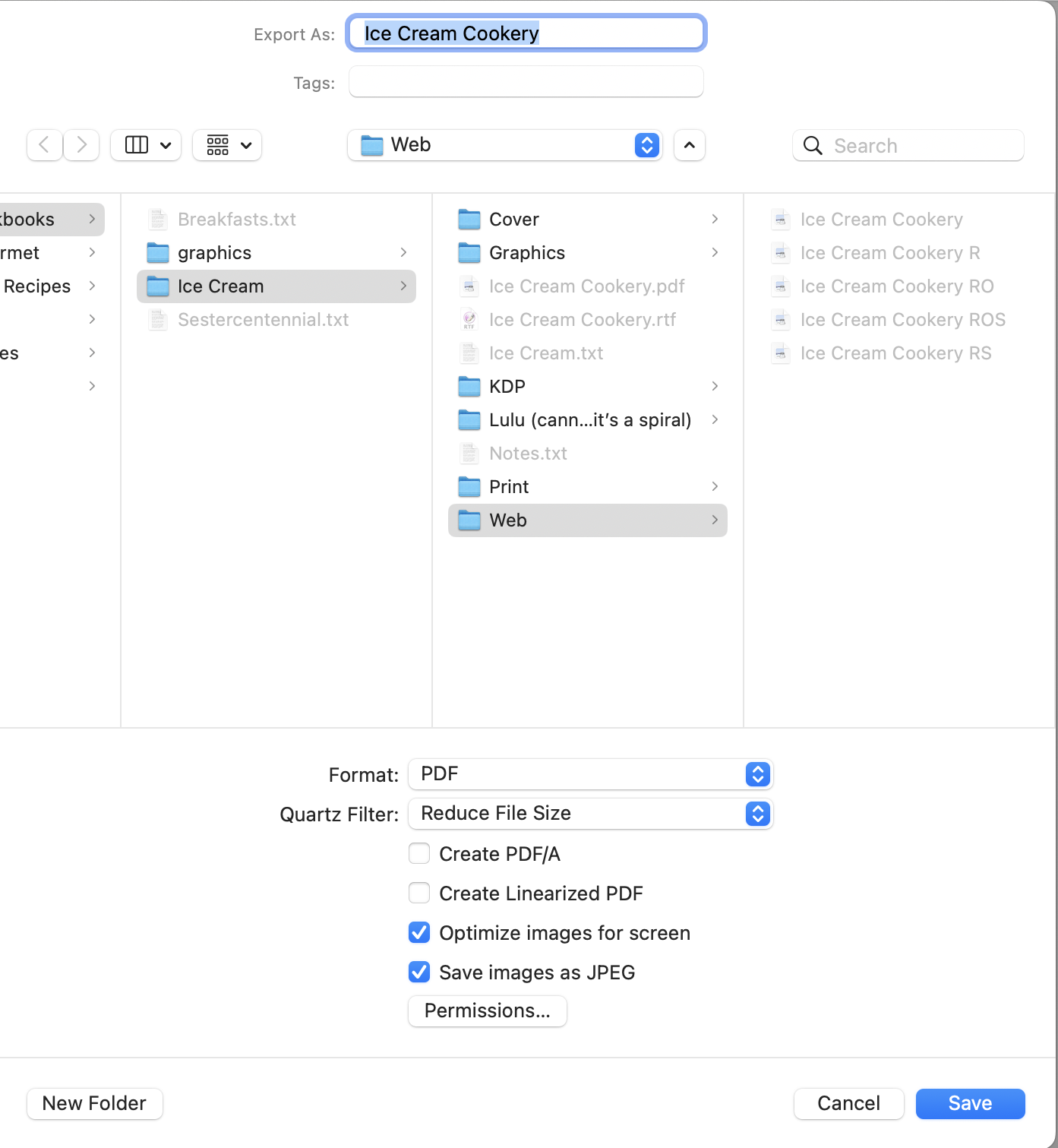
To get the built-in Reduce File Size Quartz Filter to reduce file size, I also have to check “Optimize images for screen”.
One of the most popular pages on my site is how to create a Reduce File Size Quartz filter. Sadly, while it appears to be still recommended by many people, it hasn’t worked for me for a long time. But I recently decided to write a color cookbook and I wanted to make the PDF available for download.
I don’t like having multiple sources for multiple destinations. That way lies madness. I want the same source to provide for different destinations. But the file destined for print1, because this book is focused as much on the images as on the recipes, was large even for modern downloads. If it turns out to be a tenth as popular as Quality Reduced File Size I don’t need people downloading hundreds of copies of a 34 megabyte file every day.
So I decided it was time to take a look at why Quartz filters stopped working so long ago, or at least how to get them working again. To be honest, I’m still not sure what’s going on. But I was able to get the stock Reduce File Size filter working again.
The executive summary is that I have to turn on Optimize images for screen if I want Reduce File Size to actually reduce file size. Read further for what I discovered in greater detail, as well as advice if you have multiple copies of your aging custom quartz filters.
First, Quartz filters no longer show up at all on Print, even from Preview. I have to open the PDF in Preview and choose File:Export to get the list of filters. Even then, though, if I just choose “Reduce File Size”, the resulting file is always exactly the same size as the starting file.
Apple’s help page says that, to reduce file size, you have to:
Do one or more of the following:
- Compress PDF graphics to presentation quality: Select the “Optimize images for screen” checkbox.
- Convert all graphics to JPEG format: Select the “Save images as JPEG” checkbox.
- February 16, 2012: Quality compressed PDFs in Mac OS X Lion
-
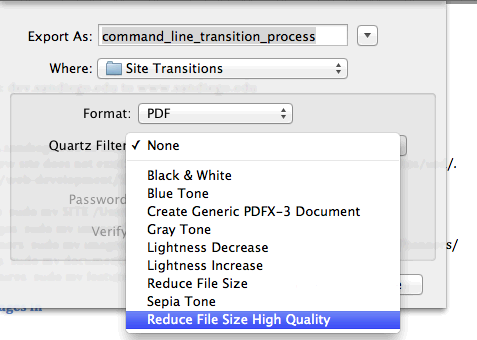
Save As… has been renamed to Export in Lion’s Preview.
I’ve verified that these instructions for using Preview to compress PDFs continue to work in Mac OS X Lion.
One minor problem is that the last paragraph—that you can even “filter while printing” without using Preview is no longer true, but it wasn’t true in Snow Leopard either. I can’t remember if it worked in Leopard or if it last worked in Tiger.
I took some screenshots but haven’t included them here; they really are exactly the same as when I wrote those instructions. The only real difference is that in Lion, “Save As…” has been renamed “Export…”.
The main issue, as Vinnie pointed out in the comments is that after you create the filter it doesn’t automatically show up in Preview’s list of Quartz filters. Either ColorSync or Preview is working from the wrong folder.
ColorSync saves your filters in your personal “Filters” folder under your “Library”. But Preview looks in “PDF Services” for the filters. Copy or move the new filter from your Library’s “Filters” folder to your Library’s “PDF Services” folder. If you want to make the filter available to everyone who uses your Mac, put it in the main “/Library/PDF Services” folder instead. Note that Lion has hidden the Library folder, so you’ll need to use the “Go” menu and “Go to folder…” to go to your “Library” folder, and also to go to the “/Library”, depending on whether you are making it available for yourself or for everyone.
Further note that Preview in Lion, but not Snow Leopard, (sometimes? always?) has problems finding Quartz filters inside your own PDF Services folder, so you may have to always put it in the main Library’s PDF Services folder instead. Oddly, the Print dialog doesn’t have any problem with this, only Preview.
This will work in Snow Leopard as well—and will sort of bring back the ability to use the filter directly while printing to PDF. The filters will be available under the PDF menu; on choosing a Quartz filter, it will immediately save the current document as a PDF. The Mac doesn’t seem to ask for a filename, and just deposits it on the Desktop, though some of that may have to do with settings on my computer.
- Persistence of Vision tutorial
- A step-by-step tutorial, available under the Gnu Free Documentation License, on using the Persistence of Vision raytracer.
More macOS Preview
- Reduce File Size Update for Sequoia
- Reduce File Size in preview still works. But there are some serious idiosyncrasies. This probably applies to well before Sequoia.
- AppleScript Preview in Snow Leopard and Lion
- Preview supports AppleScript, but the support is turned off by default. You can enable it with three terminal commands.
- Quality compressed PDFs in Mac OS X Lion
- The instructions for creating a “reduce PDF file size” filter in Lion are the same as for earlier versions of Mac OS X—except that for some reason ColorSync saves the filter in the wrong place (or, I guess, Preview is looking for them in the wrong place).
More macOS tricks
- 42 Astoundingly Useful Scripts and Automations for the Macintosh
- MacOS uses Perl, Python, AppleScript, and Automator and you can write scripts in all of these. Build a talking alarm. Roll dice. Preflight your social media comments. Play music and create ASCII art. Get your retro on and bring your Macintosh into the world of tomorrow with 42 Astoundingly Useful Scripts and Automations for the Macintosh!
- Save clipboard text to the current folder
- Use the Finder toolbar to save text on the current clipboard directly to a file in the folder that Finder window is displaying.
- Avoiding lockFocus when drawing images in Swift on macOS
- Apple’s recommendation is to avoid lockFocus if you’re not creating images directly for the screen. Here are some examples from my own Swift scripts. You can use this to draw text into an image, and to resize images.
- What app keeps stealing focus?
- I’ve been having a problem on Mac OS X with something stealing focus. Here’s how to at least find out what that something is.
- Enable AirPrint for all connected Mac printers
- I have an iPad and an old workhorse of a printer, an HP 1012 LaserJet, connected to my iMac. I almost never need to print from the iPad, but when I do, handyPrint works.
- 14 more pages with the topic macOS tricks, and other related pages
More PDF
- Reduce File Size Update for Sequoia
- Reduce File Size in preview still works. But there are some serious idiosyncrasies. This probably applies to well before Sequoia.
- Creating searchable PDFs in Ventura
- My searchablePDF script’s behavior changed strangely after upgrading to Ventura. All of the pages are generated at extremely low quality. This can be fixed by generating a JPEG representation before generating the PDF pages.
- Create searchable PDFs in Swift
- This Swift script will take a series of image scans, OCR them, and turn them into a PDF file with a simple table of contents and searchable content—with the original images as the visually readable content.
- Quality compressed PDFs in Mac OS X Lion
- The instructions for creating a “reduce PDF file size” filter in Lion are the same as for earlier versions of Mac OS X—except that for some reason ColorSync saves the filter in the wrong place (or, I guess, Preview is looking for them in the wrong place).
- Calculating true three-fold PDF in Python
- Calculating a true three-fold PDF requires determining exactly where the folds should occur.
- Five more pages with the topic PDF, and other related pages
Hey, this isn't working for me for some reason. I have no idea why. It saves the files as basically the same size (actually about .1 MB larger). I even tried to model exactly the existing "Reduce File Size" filter, and it still did it.
So, even though my filter and the existing filter have the exact same settings, the existing filter ("Reduce File Size") works and makes the pdf very small and has poor quality. But my filter makes the pdf file .1 MB larger.
Any suggestions?
Guest at 6:40 p.m. June 28th, 2009
br8UP
I'm pretty sure that the built-in Reduce File Size does more than just compress the images, but I don't know what. Whatever it is, there doesn't seem to be an automator plug-in for it.
As far as your resulting file being larger after compression than before, were the images already optimized when you put them in the document? That might result in further optimizations at a "higher quality" level spitting out larger images than the original.
I've found that custom reduce file sizes are most useful when I'm repositioning to the web documents that have very high quality images in the original.
capvideo at 4:26 a.m. June 29th, 2009
tVAhq
This worked perfectly for me. I saved a 6.5 MB file with the High Quality filter settings, and it reduced it to 2.2 MB. The image quality is MUCH better than the standard "Reduce File Size" settings, which rendered my document unreadable.
Thanks so much!
bizarrojune at 4:04 p.m. July 7th, 2009
rH3US
I found that the 'Image Sampling' filter actually made more of a difference to the file size...
Guest at 10:44 a.m. July 15th, 2009
De2tI
This was GREAT. The only thing which I am unable to do is Filter while Printing ... cannot find my created filter under coloursync ??
Guest at 9:29 a.m. August 19th, 2009
VTgK1
Open Document for PDF Conversion - or if in Web page, etc.... choose PRINT
Select PDF in lower left corner
Select Open PDF in Preview
Select File - Save As in Preview
Choose the Quartz Filter
For my filter I added Image Sampling Policy - set resolution to 150 Pixels Inch and changed quality to low
I also added Image Compression and set mode to JPEG and moved slider to LOW quality.
This resulted in a PDF that if fully readable and faxable..... and a drastic reduction in file size from over 20 Meg to 110 Kbytes. This is a great post.
Guest at 7:59 p.m. January 16th, 2010
UyPdc
Excellent, thanks for the tip. Went from 19MB to 5MB with no visible difference with the slider in 50%
Chester at 10:29 p.m. January 18th, 2010
cYrOI
Additional improvement..... use COLOR IMAGE SAMPLING at 40% before.. and then apply the image compression... the quality remains visibly the same, and your file size will go down aprox 90% !
Thanks for the great tip...
Alejandro Diego at 5:08 p.m. January 25th, 2010
a9iKK
Thanks for the tip! I did need to add the Color Image Sampling to get it to work for me, but then it worked well!
Derek at 7:32 p.m. August 23rd, 2010
tpVM4
I found that Color Image Sampling was the Key - JPEG and the slider alone under image compression did nothing for scanned files. It took an 8.3 MB file and made it a 1.2 MB file.
Here are the settings I put in for Color Image Sampling:
Scale: 85%
Resolution: left it blank
Max: 1026 Pixels
Min: 512 Pixels
Quality: High
Dotty at 5:18 p.m. September 24th, 2010
4b+Nv
+1 for adding a resample step, I put mine at 50% and then did a JPEG compression, went from a 36MB file to a 1.6MB file. Sweet tip!
Guest at 9:22 p.m. January 4th, 2011
Hkmfz
Worked for me - you're a star! I reduced a document form 165MB to 6.5MB with decent quality - I also used a bit of Image Down - Sampling. Couldn't have done it without you! Thanks!
Ana at 4:09 a.m. February 24th, 2011
CMTu/
that worked for me too, at 40% it's fine for a scanned pdf, went from 15 MB to 4MB
guest at 2:04 a.m. March 19th, 2011
oJsae
Thanks for the tip, I found the image sampling effect helped too, I duplicated the 'Reduce File Size' filter rather than creating a new one.
Guest at 10:59 a.m. March 24th, 2011
qIWzT
When I did this, all the pages in my PDF turned black and green.
Can you help me to know what i'm doing wrong?
Kieron at 12:41 p.m. March 25th, 2011
xfRwt
I see this occasionally when the PDF you’re compressing wasn’t created using Mac OS X’s built-in PDF creator, but rather Adobe’s or possibly Microsoft’s. If that’s the case—that you created the PDF elsewhere—then you might go back to the original application and see if it has compression options you can use.
If this was a PDF that you created using Mac OS X’s built-in “print to PDF” option, then I don’t know; I’ve never seen that happen.
capvideo at 8:29 p.m. March 27th, 2011
tVAhq
I was getting the black and green images too, and as capvideo says it was probably because the PDFs were created in Adobe. To get around this problem, in Colorsync create a new filter, right click on 'add color management component' and select 'convert to profile'. You'll be given a drop down menu and at the top is Adobe RGB. I opted to apply it to CYMK data to all objects (you'll see those options when you're doing it) and it worked for me. Reduced file size, with no image distortion.
Jack Gleeson at 9:59 a.m. April 16th, 2011
PH81z
I had the same problem. the file sizes kept getting bigger. I started at 2.2 MB and ended up at 13.4 MB
any suggestions?
thanks
Person at 11:37 p.m. April 19th, 2011
0JUNU
Yes. Don’t do that. If it’s already optimized I have noticed that sometimes Preview’s optimizer will end up increasing the size, sometimes drastically.
capvideo at 1:59 p.m. May 5th, 2011
tVAhq
Fantastic tip. I tried a few other options such as PDF shrink and I got nowhere. This helped me reduce the PDF size as well as keep the quality. I'll have to remember it for the future.
Dean Roskell at 4:53 p.m. June 27th, 2011
unneW
For some reason, the new entry is not showing in Quartz profile when i try to save from Preview.
This is on Lion and by the way, the Save as option is not there either. The only way i can get the anything close to that is if i use Export in preview.
Guest at 7:30 a.m. July 27th, 2011
BbWTH
This is awesome! Worked well for me. Compressed from 29.6MB to 4.7MB without much loss of quality. Thanks so much.
Anil at 6:09 p.m. October 11th, 2011
D/ti2
this was heaven sent!!! tanx! my PDF for a photography book was 600MB. Now it is 191MB. I spent two days downloading programs that would not work :/ tanx again...
vegan vampz at 12:17 a.m. October 29th, 2011
D4+yt
I have Lion and I ran into the same issue (it didn't appear in the Quartz Profile dropdown of Preview)
I found this thread: https://discussions.apple.com/thread/3196406?start=0&tstart=0
And these instructions worked for me:
Just copy your filter from:
/Users/YourName/Library/Filters/
to /Library/PDF Services/
and the customized profile will be back in preview.
Vinnie at 3:55 p.m. November 14th, 2011
i/CQk
Or you can 'move' it from one directory to the other (otherwise you'll see a copy in the ColorSync Util)
Vinnie at 3:57 p.m. November 14th, 2011
i/CQk
This worked great! I reduced my file size from 16MB to 2.7MB! Thanks!
Guest at 8:49 p.m. January 11th, 2012
XNHU/
Hey, thanks million!! I did it very well! 13MB turns to be 2.2MB in high quality reduced file..
Louise in Indonesia at 9:21 p.m. February 22nd, 2012
l+Y94
With Lion you just right click on the file (two finger click) and then select open with ColorSync utility.
From there you can select the filter you made per page and apply - when closing you get the option to save.
I find that this is quicker if you don't have loads of pages to filter.
Stefan Labuschagne in italy at 7:38 a.m. February 23rd, 2012
kglVh
There are also tools like PDF Squeezer to make it just easy.
Link: http://www.mac-attender.com/pdfsqueezer/
Peter Maier in Germany at 4:40 p.m. February 28th, 2012
MV7dt
On MacOS Lion I had trouble getting Preview to see the Filters I created in ColorSync. However, you can open the .pdf files with ColorSync, select the filter to apply in the bottom left, click "Apply" in the bottom right, and them under "File" select "Save As". I created a Medium compression filter that took 22MB to 13 MB, and a Small compression filter that took 22MB to 7.8MB and still very readable.
Gazelle at 12:53 p.m. March 14th, 2012
nRVbS
Thanks a million! Does anybody know how I get the filter to apply right when the image gets saved after scanning? In other words I don't want to have to reopen the file and save but instead the scan has the filter applied to it automatically and the file size is small. Anybody able to help?
RS at 12:13 p.m. April 6th, 2012
vcU2O
Brilliant - rarely have I come across a more useful tip - thank you!!!
I have found on Snow Leopard that if I set the image quality below 50% I don't get any reduction in file size at all - not sure why. Setting it to 50% leads to a much better quality image than before and around 1/3 of the original file size for the documents I'm working with.
Thank you too for the further tip on cutting out the print, open, save as sequence and the clarification on clicking on preview from the print dialogue.
Scragglygoat in UK at 6:30 a.m. June 1st, 2012
6Wnvh
What if you have no Filters folder in your Library? (Lion)
I can't find my custom filter saved anywhere...
Adam at 9:07 a.m. June 29th, 2012
qX+Iu
Adam, maybe they save it in different places for different people. (Other people on the Lion compressed pdf page have also had trouble. Did you look in PDF Services? Did you try Spotlight?
Jerry in San Diego at 10:34 a.m. June 29th, 2012
3eqBR
While I can still see my filter in the ColorSync Utility, it no longer shows in Preview on Mountain Lion. Seems Apple has changed something here.
Matt in Long Beach, CA at 5:37 p.m. August 9th, 2012
IKPUT
THIS TIP IS SO AMAZING. Thanks for everyone who finds these things out and then shares them.
Brandon at 10:51 a.m. August 10th, 2012
Hg3cI
Very sound information. Running Lion 10.7.4 and was unable to locate the hidden folders in for colorsync or preview, probably because I didn't follow advice given to the word, or other advice left in comements. One link in comments was helpful, advising to open the pdf with colorsync, apply the filter created and then save/saveas. This method worked well, and if opening file with colorsync, it may be a good idea to duplicate the file before opening it in case you save over your original pdf.
Very helpful website. Have learnt something which I will apply for years to come.
George Fountain in Over the moon at 9:41 p.m. September 16th, 2012
6Iko3
Opening with the colorsync utility fixed it for me, I could never get the filter to show up in the preview ->export dialog box on Mountain Lion.
Rama at 7:38 p.m. September 23rd, 2012
0sg8R
Advice from "Dotty at 5:18 p.m. September 24th, 2010" was fantastic. Went from 9.8 MB to 2.5 MB with no real loss of quality. Thanks!
I Guy at 3:14 p.m. November 12th, 2012
PyAOj
Great tip and well-explained steps. I faced the same problem in Mountain Lion, but your update to the guide walked me through it. I was able to compress the PDF file that was too big while still keeping a reasonable resolution for the images in it.
Note that I did have to put the custom filter in the global /Library/PDF Services directory.
Thank you
Majed in Dhahran, Saudi Arabia at 3:31 p.m. December 8th, 2012
Jjnt4
You are a savior. Went from 53MB to 6.3 without quality degradation
Dude just dude at 3:05 a.m. December 17th, 2012
MsFbe
Acrobat 10 was crashing every time I tried to save a file. I found your page via Google search, and presto: 10mb down to 4.5mb with very light degradation. You da man!
GM in Oregon at 3:09 a.m. June 19th, 2013
hKLiu
The fix recommended by "Jack Gleeson" on April 16, 2011 worked for me... re-saving a multi-page PDF created in Illustrator with Preview's "Reduce File Size" option was creating heavily pixelated, inverted, and green-tinted photos... adding the "Convert to Profile" option worked. I also removed the "Image Sampling" options from the ColorSync filter with no ill-effects (it was clunky to work with).
Hark Thrice in Somewhere at 11:49 p.m. October 14th, 2013
2TJ0n
Thanks a lot, worked fine for me as well, even under Yosemite!
Daniel at 11:59 a.m. October 31st, 2014
UKfDi
Thanks, working fine for me, moving filter to Library/PDF Services
Diego Piedrabuena in Buenos Aires, Argentina at 5:26 p.m. December 22nd, 2015
JggF2