


Combining multiple PDF files into a single file
One of the things I often do at work is use Adobe Acrobat Pro to combine multiple PDF files into a single file. For the most common tasks, I have an AppleScript that combines the files and re-saves them. At home, I don’t have Acrobat Pro, but I still want to occasionally combine PDF files. In the past, I’ve just not done it, but today I finished making a set of reference sheets for the Gods & Monsters role-playing game, and I needed an automated means of combining them.
Preview doesn’t directly combine PDF files, but it turns out that Automator can. Combining PDF files in Automator consists of two to five actions, depending on what you want the results to be.
Automator is in your Applications folder in Mac OS X 10.4 or higher.
- Choose the files. In my case, I already know what files are going to be combined every time, so I used the Finder’s “Get Specified Finder Items” action. I dragged the items into the list. You might instead use the “Ask for Finder Items” if you’ll need to combine different items each time you use the Automator script. If all you want to do is drag and drop the PDF files onto the Automator script, you don’t need this step at all.
- Combine the files. In the list of Applications in Automator, there is one called PDF. That application has “Combine PDF Pages”. This will combine the files from the previous step into a single temporary file.
-
Do something with the new file. The simplest thing to do is to use the Finder’s “Open Finder Items” action, and open with Preview. You can then view the document in Preview and if it meets your needs, save it just as you would any other file in Preview. For full automation, however, you can also automatically rename and copy the file to a pre-specified location. Here’s what I added as steps three through five.:
- Rename PDF document. The temporary combined file has a temporary name. The PDF application has an action called “Rename PDF document” that attempts to give the PDF file a useful name; if it can’t determine the appropriate name, it gives it the name “Untitled”.
- Rename Untitled if necessary. The Finder has an action called “Rename Finder Items”, and you can replace any text in the original name with any other text. I replaced Untitled with Sheets.
- Move the file to the desired location. Using the Finder’s “Move Finder Items” action, I move the file to the Desktop; I could also move it to any location on my computer.
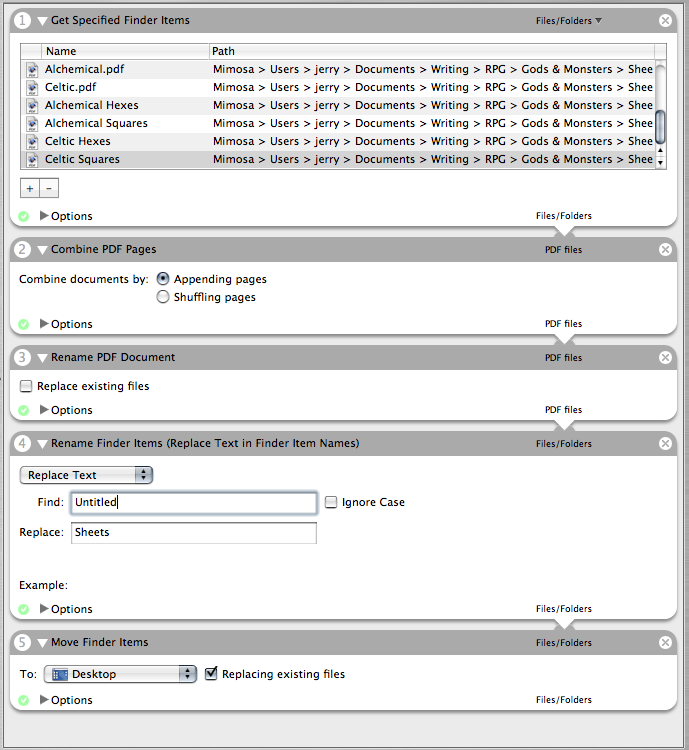
When you’re done making the Automator script, you can save it as an Application; you can then re-use it as you would any other application, by double-clicking on it in Finder. From now on, when I need to combine those thirteen individual PDFs, all I need to do is double-click my Combine Gods & Monsters Sheets application and it will combine them for me, into a file called Sheets.pdf on my desktop.
Note: Preview can combine documents as of OS X 10.5, so if you only need to do it once you can just drag the document where you want it in the sidebar of the main document.
- May 21, 2007: Automator problems with custom Python
-
I thought I’d implement this simple drag-and-drop PDF combiner at the office today, only to discover that it didn’t work. I made a simpler one: just the two steps “combine PDF” and “open in preview”. I noticed that the files were being created but were empty. In the console app I found the following error:
[toggle code]
-
Traceback (most recent call last):
-
File "/System/Library/Automator/Combine PDF Pages.action/Contents/Resources/join.py", line 23, in ?
- from CoreGraphics import *
-
File "/System/Library/Automator/Combine PDF Pages.action/Contents/Resources/join.py", line 23, in ?
- ImportError: No module named CoreGraphics
It was interesting to see that at least some Automator functionality is programmed in Python.
My problem was that, at the office, I updated Python from the 2.3 that comes with Mac OS X 10.4 to 2.4, and then I made 2.4 the default (linked /usr/bin/python to /usr/local/bin/python2.4). However, the way Python works is that libraries are installed on a per-version basis. So 2.4 had no idea where to import the core graphics library.
I switched the default Python back to 2.3 and the Automator app began working as expected.
-
Traceback (most recent call last):
- New character sheets, maps, and reference sheets
- The character sheets and reference sheets have been converted to Scribus, and new map grids are availble in Inkscape. All are also made available as PDF files.
More Automator
- Another Safari 14 Services workaround
- Another workaround to Safari 14’s Services bug is to copy the results to the clipboard.
- Renumber selected lines of text
- This very short script renumbers lines of text and normalizes on a single tab/space combination in front of each number.
- AppleScript, variables, and dropped filenames in Automator
- Automator is a simple workflow system for Mac OS X. By its nature it is very procedural: one task follows another; workflows don’t loop and they don’t store variables for later. However, this is possible in Automator and while it adds complexities it can also solve problems such as wanting to save dropped filenames for later use.
- Automator problems with custom Python
- At least some Automator actions use Python. If you’ve updated Python on your system, these actions might not be able to import core functionality from OS X.
More macOS tricks
- 42 Astoundingly Useful Scripts and Automations for the Macintosh
- MacOS uses Perl, Python, AppleScript, and Automator and you can write scripts in all of these. Build a talking alarm. Roll dice. Preflight your social media comments. Play music and create ASCII art. Get your retro on and bring your Macintosh into the world of tomorrow with 42 Astoundingly Useful Scripts and Automations for the Macintosh!
- Save clipboard text to the current folder
- Use the Finder toolbar to save text on the current clipboard directly to a file in the folder that Finder window is displaying.
- Avoiding lockFocus when drawing images in Swift on macOS
- Apple’s recommendation is to avoid lockFocus if you’re not creating images directly for the screen. Here are some examples from my own Swift scripts. You can use this to draw text into an image, and to resize images.
- What app keeps stealing focus?
- I’ve been having a problem on Mac OS X with something stealing focus. Here’s how to at least find out what that something is.
- Enable AirPrint for all connected Mac printers
- I have an iPad and an old workhorse of a printer, an HP 1012 LaserJet, connected to my iMac. I almost never need to print from the iPad, but when I do, handyPrint works.
- 14 more pages with the topic macOS tricks, and other related pages
More PDF
- Reduce File Size Update for Sequoia
- Reduce File Size in preview still works. But there are some serious idiosyncrasies. This probably applies to well before Sequoia.
- Creating searchable PDFs in Ventura
- My searchablePDF script’s behavior changed strangely after upgrading to Ventura. All of the pages are generated at extremely low quality. This can be fixed by generating a JPEG representation before generating the PDF pages.
- Create searchable PDFs in Swift
- This Swift script will take a series of image scans, OCR them, and turn them into a PDF file with a simple table of contents and searchable content—with the original images as the visually readable content.
- Quality compressed PDFs in Mac OS X Lion
- The instructions for creating a “reduce PDF file size” filter in Lion are the same as for earlier versions of Mac OS X—except that for some reason ColorSync saves the filter in the wrong place (or, I guess, Preview is looking for them in the wrong place).
- Calculating true three-fold PDF in Python
- Calculating a true three-fold PDF requires determining exactly where the folds should occur.
- Five more pages with the topic PDF, and other related pages
if you have snow leopard you can replace ask for finder items with get slected finder items. then if you save it as a service, you can select your PDFs, then left-click>services>Combine PDF documents(or watever you named it)
alex3yoyo at 6:01 p.m. December 13th, 2009
ZbKsS
I'm on old-school 10.4, never used Automator before, needed to combine PDFs quickly and simply.
This did the business. Good instructions, well laid, easily explained.
thanks
The frumious Bandersnatch at 4:05 a.m. July 19th, 2012
1ZzGQ